How to Automate Business Processes With Workflow Automation
Written by Christina Miranda · Reviewed by  Dokmee
Workflow automation can deliver a 248% three-year ROI. Dokmee’s automated workflows reduce manual tasks and errors as they increase efficiency.
Did you know employees typically lose a quarter of their work week on manual tasks?
What if your team could reclaim hours of productive time every week while reducing errors and moving work through approvals faster?
The case for workflow automation is backed by measurable results. Workflow automation brings a 248% ROI over three years.
The impact goes beyond time savings. Automating document-heavy processes can reduce manual data entry, limit errors, shorten approval cycles, and give teams better visibility into work in progress.
A DMS or ECM like Dokmee combines configurable workflows with AI-powered document capabilities to help your team manage information and complete everyday processes more efficiently.
What is workflow automation?
Workflow automation uses software to carry out recurring tasks and coordinate business processes with minimal manual intervention, helping teams move work forward more consistently.
Automated workflows connect different steps in a process, including document submissions, task assignments, approvals, notifications, and follow-up actions. They rely on predefined rules and triggers to determine what happens next, who needs to take action, and when.
For example, when an employee submits an expense form, the system can automatically send it to the appropriate manager for approval, notify the finance team once it is approved, and store the completed document in the correct location.
While workflow management focuses on organizing, assigning, and monitoring tasks, workflow automation takes this a step further by executing specific actions automatically. The software automatically handles follow-ups and notifications according to established rules.
With AI-powered automation, AI can extract information from documents, recognize relevant data, classify files, and support decisions about how information should be processed. Combined with automated triggers, routing rules, and human approvals, these capabilities can reduce manual document handling and make complex workflows easier to manage.
With a document management platform like Dokmee, you can build automated workflows around your organization's document processes, from invoice approvals and contract reviews to employee onboarding.
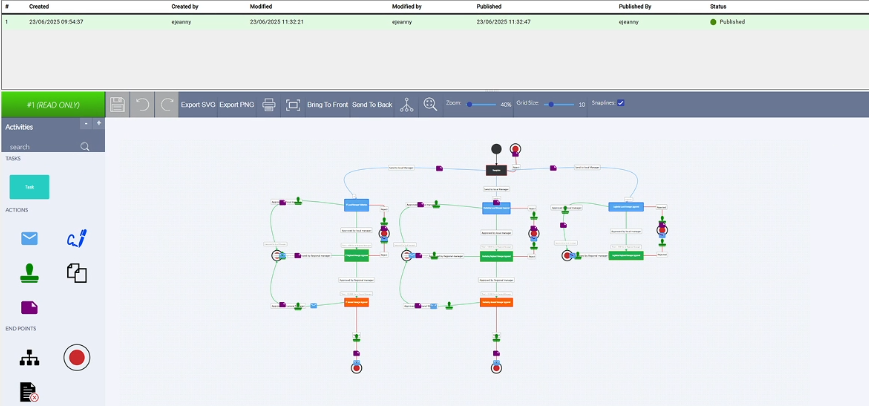
How does workflow automation work?
Workflow automation works by combining triggers, actions, conditions, and notifications to move a business process from one step to the next. Once a workflow is configured, the software follows predefined rules to perform tasks, assign responsibilities, and notify employees when their input is needed.
There are four main components within a workflow: triggers, actions, conditions and rules, and notifications.
Triggers
A trigger is an event that starts an automated workflow. It tells the software when to begin a process or move an existing one forward.
Triggers can be based on an action performed by an employee, a document event, or a predefined condition. Some examples are:
A new document is uploaded to the document management system
An employee submits a form or request
An approval is granted or rejected
A specific date or deadline is reached
A document's metadata meets predefined conditions
For example, when an employee uploads an invoice to Dokmee, this event can trigger a workflow that automatically sends the document for review.
Actions
Actions are the tasks the software performs after a trigger occurs. Depending on how you configure the workflow, these can happen automatically or require input from a specific employee, for instance:
Assigning a document or task to a user
Moving a document to another folder
Requesting an approval or review
Updating document metadata
Sending an email or notification
Initiating another workflow
The system can automatically assign the document to the relevant department manager, update its status, and send an approval request.
Conditions and rules
Conditions determine which actions take place based on specific criteria. They allow you to customise workflows to reflect your organization's approval structures, document types, and business requirements.
For example, an invoice below a predefined amount might only require approval from a department manager, while an invoice that exceeds that amount will have to go through the finance director as well. The workflow checks the invoice information and automatically routes it to the appropriate people.
AI-powered automation can make document workflows more intelligent by extracting information from invoices, identifying relevant fields, and classifying documents. This information can then be used alongside predefined workflow rules to guide document processing and reduce manual data entry.
With Dokmee, AI-powered document capabilities can complement automated workflows, while employees retain control over decisions that require verification or approval.
Notifications and escalations
Notifications keep everyone involved informed about what needs to happen next. They reduce the need for employees to check document statuses manually or follow up with colleagues to find out whether a task has been completed.
Depending on the workflow, notifications can alert when an action needs to be taken or act as reminders. You could also add escalations, where, if someone fails to take action in by the due date, a manager will be alerted.
How to automate a business process using a DMS
Automating a business process with a DMS starts with understanding how documents move through your organization and identifying which steps can be handled automatically. Whether you're managing invoice approvals, employee records, or contract reviews, a structured approach helps you build workflows that fit your team's needs.
Here are five steps to get started.
Step 1. Identify the process you want to automate
It might sound obvious, but don’t start by automating every process left and right. Select common processes that are carried out regularly within your organization, such as form collection, document reviews, approval requests, etc.
Prioritize processes that involve several departments and frequently experience delays. Automating a well-defined process first also makes it easier to evaluate the results before expanding automation to other areas.
Step 2. Map the existing workflow
Make sure you have identified every step in the workflow, so you can include everyone involved, the documents required at each stage, the order of tasks, and the decisions that determine what happens next in the workflow creation.
Pay particular attention to bottlenecks, unnecessary handoffs, and steps that depend on employees manually forwarding documents or following up with colleagues. Mapping the existing process gives you a clearer picture of what needs to change and helps prevent inefficient practices from carrying over into your automated workflow.
Step 3. Define triggers and conditions
Next, determine what should start the workflow and which rules will guide it from one stage to another. Triggers might include a new document upload, a completed form, an approval request, or an approaching deadline.
At this point, don’t forget to include escalations. If a task wasn’t completed on time, who should be notified? Or who should take the action?
Then, establish the conditions that determine how the system handles different scenarios. For example, an invoice might follow a different approval path depending on its value, department, or supplier. If you're using AI-powered document processing, extracted information can also help identify document types and relevant fields, reducing the amount of manual data entry required.
Step 4. Assign responsibilities
Every stage of an automated workflow should have a clearly defined owner. Decide who needs to review, approve, verify, or process each document, and establish which employees are responsible for handling exceptions.
You should also define approval hierarchies and permissions to ensure documents reach the right people. For example, an HR form might go directly to an HR manager, while a purchase request could require approval from both a department head and a finance manager.
Step 5. Configure automated actions and notifications
Once the process and responsibilities are defined, configure the actions that will take place at each stage. These might include automatically routing documents, updating metadata, changing document statuses, requesting approvals, and moving completed files to designated folders.
Set up notifications and reminders so everyone knows when to take action. You can also configure automatic escalations when tasks remain incomplete beyond a specified deadline. For example, if an invoice approval is overdue, the system can notify the responsible manager or escalate the request to a supervisor.
Make sure your DMS’ integrations are properly set up so users can sign, edit, or complete their documents.
How Dokmee automates your workflows
Dokmee combines document management and workflow automation, allowing you to create, customize, and manage automated processes around the documents your teams use every day.
With its visual no-code workflow builder, coded workflow builder, and AI-powered document capabilities, Dokmee gives you different ways to automate your tasks without losing control or security over your documents at any point.
With Dokmee you can create automated workflows through a visual interface, without requiring programming knowledge. You can configure approval sequences, assign tasks to specific users or departments, and define triggers and conditions that determine what happens at each stage. You can also set up automated notifications to alert employees when a document requires their attention, send reminders for pending tasks, and keep processes moving as documents progress through the workflow.
As your requirements change, you can simply adjust your workflows as needed.
Dokmee’s coded workflow builder provides greater flexibility when standard configurations aren't sufficient to accommodate complex business processes. You can implement more specific business rules, customize workflow logic, and build processes around particular operational requirements. If you need this advanced option but don’t have an IT team at your disposal, the Dokmee team can handle workflow creation for you.
Dokmee’s AI-powered capabilities complement workflow automation by making document processing and information retrieval more efficient. Its AI indexing and OCR capabilities extract information from documents, and AI-powered search allows employees to find information across their document repositories more efficiently.
What processes can you automate with workflow automation?
Many business processes involve repetitive tasks, document handoffs, and approval requests that require employees to coordinate manually. Workflow automation can take care of these recurring steps, reducing administrative work and making it easier to keep documents moving between departments.
With a DMS like Dokmee, you can automate processes across different teams, from HR and finance to legal and procurement. Here are four common examples.
Document approval workflows
Document approvals often involve several employees and departments, making it easy for requests to get delayed or overlooked. Workflow automation allows you to establish predefined approval sequences so documents automatically reach the right people at the right time.
For example, when an employee submits a purchase order, the system can route it to the department manager for review and approval. Once the manager approves it, the document can move to finance verification. Automated notifications alert the appropriate people when action is required, while reminders can be sent when an approval remains pending. Once the process is complete, the approved document can be moved automatically to its designated folder for storage and future reference.
The same approach applies to contracts, invoices, internal policies, and other documents that require review or authorization.
Employee onboarding workflows
Employee onboarding involves collecting, reviewing, and distributing multiple documents while coordinating tasks between HR, IT, and other departments. Automating this process gives each team a clear set of responsibilities and reduces the administrative work involved in welcoming new employees.
When HR registers a new employee, an automated workflow can initiate the onboarding process and distribute the necessary forms, agreements, and policies. Documents can be routed to the employee for completion and signature, while notifications alert HR when forms are submitted or additional information is required. IT can also receive an automatic notification when a new employee needs system access or equipment.
Once all the required documents have been completed and approved, the system can organize and store them in the appropriate employee records.
Automating this process through a qualified DMS will also guarantee integrated e-signatures to make the process even simpler.
Invoice processing workflows
Finance departments that receive many documents from different departments, usually need to enter invoice details, checking information, and requesting approvals manually, causing delays and, more often than not, errors.
A DMS with OCR and AI-powered capabilities can extract relevant information from incoming invoices, such as supplier names, invoice numbers, dates, and amounts. Once captured, this information can be used to organize documents and inform the next steps in the workflow. Predefined rules can then route invoices to the appropriate department or approver based on their value, supplier, or other criteria.
For example, an invoice below a specified amount might only require department manager approval, while a larger invoice could also need authorization from the finance director. Automated notifications inform team members when an invoice requires attention, and reminders can be triggered when requests remain pending. Once final approval is granted, finance receives a notification that the invoice is ready for payment.
Contract management workflows
Managing contracts involves initial submission, approval, signature, and renewal, among other steps. Workflow automation helps coordinate these activities, ensuring that documents reach the right stakeholders and important deadlines don't go unnoticed.
When a new contract is uploaded, the system can automatically route it to the legal department or for review. Once the necessary changes have been made, it can move through the predefined approval sequence and notify the appropriate employees when the agreement is ready for signature.
Automation can also help teams stay ahead of contractual obligations by scheduling reminders through date-based triggers to review agreements and decide whether to renew, renegotiate, or terminate them. After signing, the completed agreement can be automatically stored in the appropriate repository, making it easier to retrieve when needed.
Dokmee can configure your documents around your organization's approval requirements, document types, and responsibilities.
Workflow automation examples by industry
Workflow automation can be applied to almost any industry where employees handle recurring tasks, process documents, or coordinate approvals.
For government agencies, manufacturers, healthcare providers, and legal teams, document-centric workflows are particularly useful. They help coordinate information between departments, keep approvals moving, and ensure important records are handled consistently. How can it be applied to these industries?
Government
Government agencies handle large volumes of applications, public records, permits, and administrative documents. Many of these processes involve several departments, strict deadlines, and specific review requirements.
Workflow automation can simplify these processes by automatically assigning incoming documents, notifying responsible employees, and tracking progress. For example:
When a records request is submitted, an automated workflow can assign it to the appropriate department, notify the responsible employee, and set reminders for response deadlines. If additional information is required, the system can trigger a notification so the request can be followed up.
Once an application is submitted, the system can route it to the relevant department for review. If supporting documents are missing, employees can be notified to request the necessary information. Once the application is approved or rejected, the applicant can receive an update.
Incoming documents can be classified and routed to the appropriate repositories based on predefined rules. Automated actions can also support retention processes by flagging records for review or archiving when relevant dates are reached.
These workflows give government employees a clearer view of pending requests and help ensure documents reach the right departments without unnecessary manual handoffs.
Manufacturing
Manufacturing companies coordinate purchasing, production, quality control, and supplier relationships. These operations generate substantial documentation, and delays in reviewing or approving a single document can affect other stages of production.
Workflow automation helps connect these activities and makes responsibilities clearer across departments.
When a department submits a purchase request, the system can route it to the appropriate manager based on the department, budget, or purchase value. Once approved, procurement receives a notification to proceed with the order. Higher-value purchases can automatically require additional authorisation.
When a production milestone is reached, an automated workflow can trigger an inspection request and notify the quality control team. If an employee reports a defect or failed inspection, the system can assign a follow-up task to the responsible team and notify the relevant manager.
When a supplier submits a new certificate, contract, or compliance document, the system can route it to the appropriate employees for verification. Notifications can alert reviewers when documents are received, while reminders can flag pending reviews or approaching expiration dates.
By automating these processes, manufacturers can reduce administrative delays and maintain better control over purchasing, supplier records, and quality documentation.
Healthcare
Healthcare providers manage sensitive patient information, registration forms, medical records, insurance documents, and other records that need to reach the right people. Workflow automation can help administrative teams coordinate these documents while maintaining appropriate access controls.
Common applications include:
When a patient submits registration forms, the system can route the documents to the appropriate administrative team. If information is missing, staff receive a notification to follow up before registration can be completed.
Newly uploaded records can be routed to authorized professionals for review. Notifications can alert relevant staff when documents require attention, while predefined access permissions help ensure that sensitive information is only available to authorized users.
When supporting documents to insurance claims are submitted, an automated workflow can organize the files and route them to the appropriate team for verification. If additional documentation is needed, the responsible employee can receive a notification to request it.
These workflows help healthcare organizations manage administrative documentation more consistently and reduce the time employees spend tracking down records or following up on incomplete submissions.
Legal
Law firms and corporate legal departments handle contracts, case files, evidence, and other documents that require careful review and approval. Workflow automation can coordinate these activities, making it easier to track document status and ensure that the appropriate people are involved at each stage.
For example:
When a new contract is uploaded, the system assigns it to a legal professional based on its document type or department. Reviewers receive notifications when a contract is assigned to them, and reminders can be triggered when a review deadline approaches.
Incoming case files are automatically classified and stored in the appropriate case folder. When new information is added, the system notifies the relevant legal team members so they can review the updated file.
Agreements, legal notices, and internal documents can be routed through predefined review and authorisation stages. If a document requires changes, it can be returned to the relevant employee before moving forward for final approval.
Automating these processes gives legal teams better visibility into document handling and reduces the risk of missing review steps or leaving important files unassigned.
Human resources
HR departments manage a continuous flow of employee documentation, from recruitment and onboarding to leave requests, performance reviews, and offboarding. These processes often involve several employees and require documents to be collected, reviewed, and approved within specific timeframes.
Workflow automation can take care of recurring administrative steps, including:
When HR registers a new employee or initiates an offboarding process, the system can automatically assign the required tasks, distribute relevant forms, and notify HR, IT, and department managers when action is needed.
When an employee submits a leave request, the system can automatically forward it to their manager for approval. Once a decision is made, the employee and HR team receive a notification, and the relevant records can be updated.
New documents, such as signed agreements, tax forms, and policy acknowledgements, can be routed to HR for review. If information is missing or a document needs correcting, the responsible employee can receive an automatic notification.
The system can trigger notifications when a performance review period begins, assign review tasks to managers, and send reminders as deadlines approach. Once completed, the documents can be stored in the appropriate employee records.
By automating these recurring processes, HR teams can spend less time coordinating paperwork and more time on employee support and workforce management.
Across all these industries, the common requirement is a reliable way to manage documents as they move between people, departments, and approval stages. Dokmee allows you to configure workflows around these requirements, with automated routing, approval sequences, notifications, and AI-powered document capabilities.
Automate document workflows with Dokmee
Workflow automation can make a difference across industries, particularly when employees handle large volumes of documents, approvals, and recurring administrative tasks.
Dokmee brings document management and workflow automation together, giving you the tools to build processes around your organization's specific requirements. Its no-code workflow builder lets you configure automated document routing, approval sequences, triggers, and notifications without programming, while the coded builder provides additional flexibility for more complex processes. AI-powered indexing, OCR, and search further improve how your teams organise, process, and retrieve information.
You can start with a single repetitive process and expand automation as your needs evolve. The result is better visibility into document workflows, clearer responsibilities, and less time spent managing routine tasks manually.
To automate your document workflows, contact the Dokmee team today for a free demo.